HTML Review
The basic idea of html is that any text you write will be displayed on the screen if the file is saved as a .html and opened in any web browser or program that reads html files. To edit the appearence of this text you can use tags for different things like bolding, paragraphing, changing the text style, and adding an image.
Lesson:
I Recommend that you use an app like Sublime Text to create your website, because there are certain shortcuts and other features that make your life a whole lot easier when it comes to html programming.
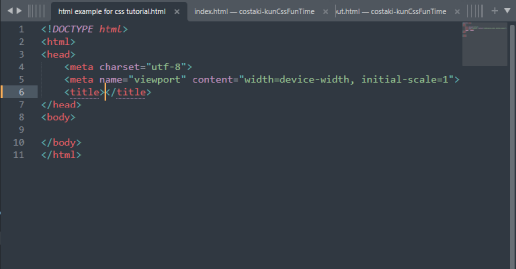
The first thing you should do is open up sublime text, make a new document, and type in "html" and hit tab. This sets up the default structure of the document. If this is not working then save the file first as html, then try again and save. Now your document should look like this:
It would be wise to add a title between the 2 title tags, I will call it "My Website". The title tag is what shows up on the tab or bookmark. Next we are going to write something that can be seen in our website, so in between the body tags we can put some dummy text. To generate dummy text in sublime text you can type the word "lorem" (no quotes) and then press tab and it will generate something like this:

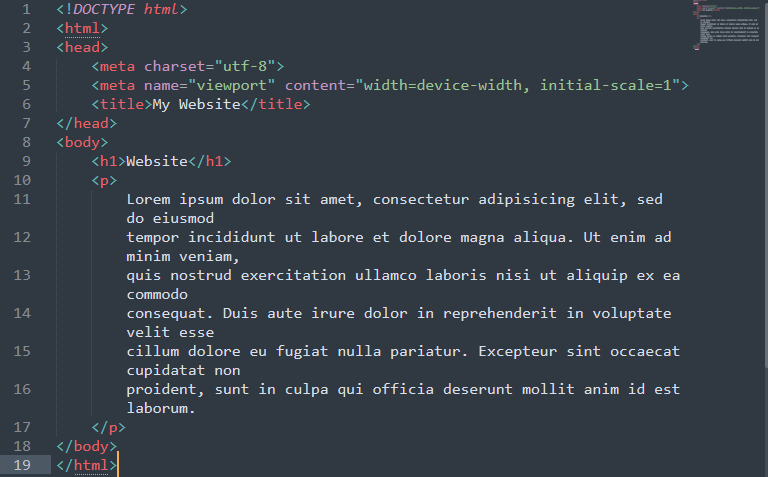
Now that we have a basic setup we can do certain things to the text to seperate parts of it and make a header and stuff like that. This is done using tags so the first one we are going to use is the p tag. if you click before your lorem ipsum then in triangle brackets type p, and at the end of the lorem ipsum type in triangle brackets slash p then select the lorem ipsum and press tab, you have now created a paragraph. I will refer to things in triangle brackets as tags, so next add a line abve the p tag and type a tag that says h1 (then close it with a slash h1 tag of course). In that h1 tag we will put our header so I will write "Website". the resulting program looks like this:
Now you have a fully functioning website technically, but there is one more important thing I havent covered yet and that is images, so I will show you how to put your favorite photo at the bottom of your website. To add an image you must first download the image into the same folder as your program, after that you can use the command img src="image.png" but with triangular brackets aorund it, replacing my image.jpg with whatever the name of your image is. if your image was in a subfolder called :images lets say your command would be img src="images/image.png"
Homework:
- Step 1: Make and setup a new HTML file.
- Step 2: Set a title and add a header, as well as three paragraphs
- Step 3: Play around and try to use b, ul, li, br, hr, tr, and td tags. The last 2 aren't essential but may be helpful later on. Feel free to use W3Schools if you get stuck.